
9.4 KiB
Preamble
We're going to be using two mods to get wireless crafting access to all of our inventories, across dimensions (in both the overworld and the nether).
We're going to use two mods for this: Sophisticated Storage and Tom's Simple Storage.
Block Descriptions
In this section I'm going to try to explain the blocks we're using. Please refer below when I use the terms elsewhere.
Sophisticated Storage
Barrels and Chests: Make sure you're using Sophisticated Storage barrels and/or chests when doing all this. Not sure if it matters, but I think it does. You can filter in item lookups on a mod-by-mod basis by typing @mod beforehand. So when I look up barrels from Sophisticated Storage I can search @soph barrel.
Storage Controller: This is a block which serves as your "connection point" to all your different inventories. I think how the mod handles multiple inventories is to take multiple, separate chests and "merge them together" into one "combined" chest. This is that chest. Works with Storage Links.
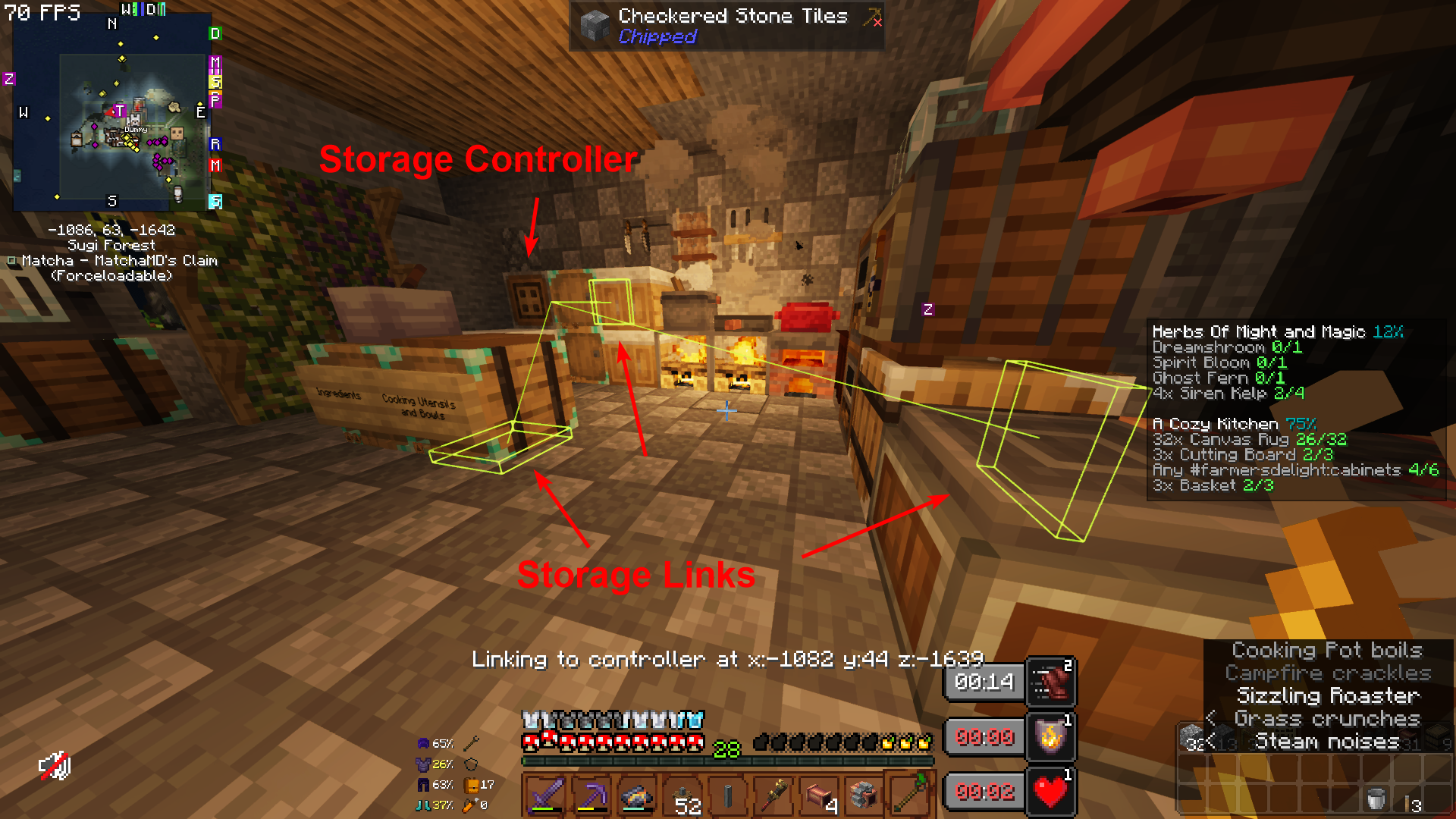
Storage Link: It's a plate, which when attached to a storage block, will provide a connection point to the Storage Controller. Will connect to any adjacent storage blocks (so if you place all your barrels/chests beside each other, you only need one link). Maximum length is 15 blocks.
Storage Tool: Connects Storage Links to Controllers. Change the function by scrolling with your wheel while Sneaking.
Tom's Simple Storage
Inventory Connector: Works similarly to the Storage Controller above ("a big combined chest"), but will work with the wireless broadcasting.
Inventory Cable Connector: Similar to the Storage Link, but requires a cable to be run between inventories to link them.
Inventory Cable: Used to link inventories together.
Inventory Trim: Pretty much a cable, but is a full block. Can be painted to make it look like other blocks. Can connect to cables.
Paint Kit: Paints Inventory Trim to make it look like other blocks.
Crafting/Inventory Terminal: Plates that you put onto either Inventory Connectors or Storage Controllers to access their inventories. Crafting Terminals allow you to craft directly from those inventories (generally better for our purposes here).
Advanced Wireless Terminal: An item that you link to a Crafting or Storage Terminal in order to wirelessly connect to their stuff.
Vanilla Minecraft
Beacon: An item which creates a buff in an area around it. When you build a pyramid underneath it, it gets a stronger effect based on the size of the pyramid.
Pyramid Blocks: Iron blocks, gold blocks, emerald blocks, diamond blocks, and/or netherite blocks. Make full squares under a beacon to make the beacon stronger.

Step 1: Getting your inventories linked
The first step is to get all your inventories linked together, and then accessing them via a Storage or Crafting terminal.
- Build a Storage Controller and place it somewhere.
- Build Storage Links and connect them to your storage blocks within 15 blocks of the controller.
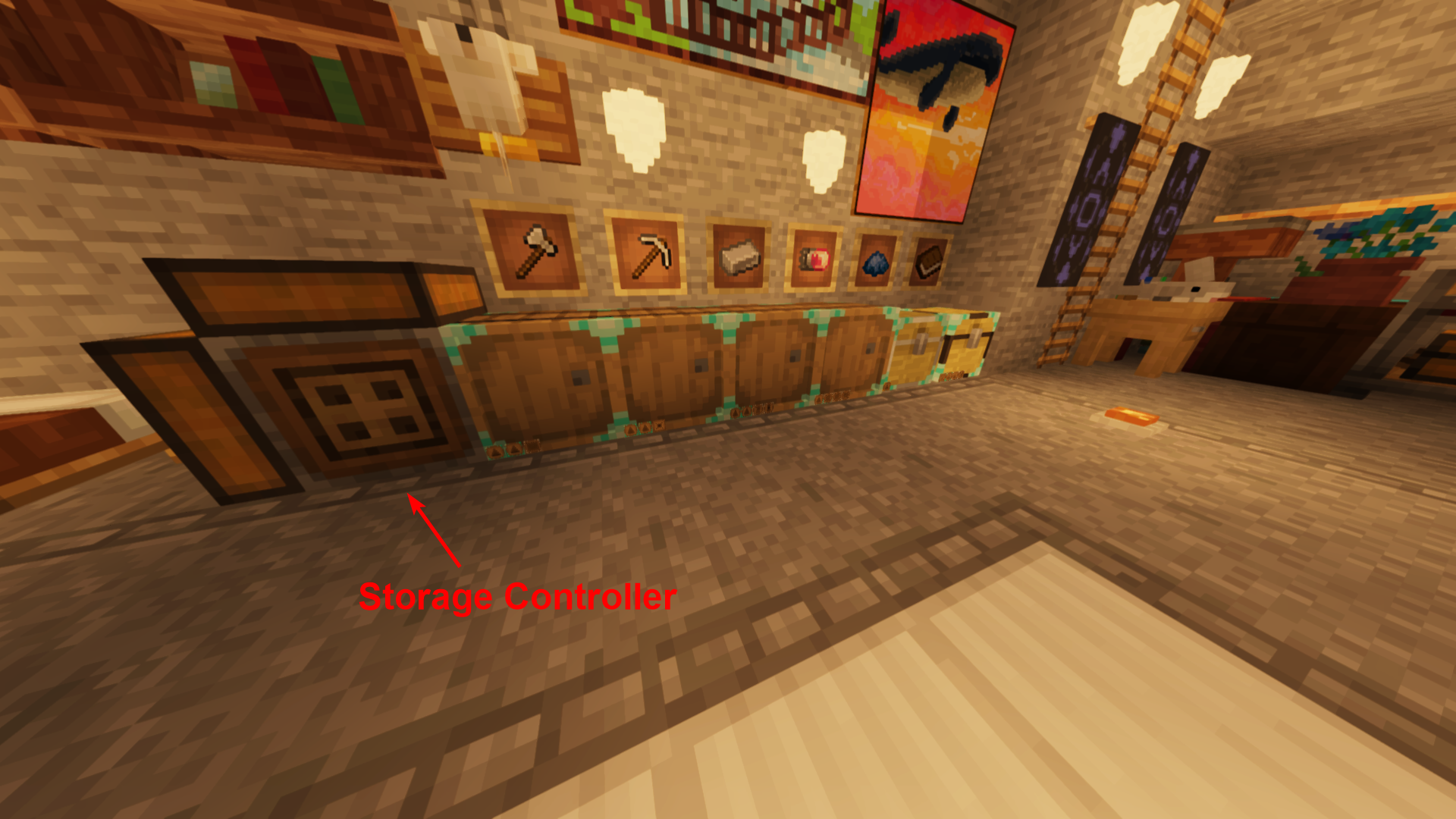
- Craft a Storage Tool. Sneak + Scroll wheel to make sure the command is "Linking" and then right click your Storage Controller. Then right click your Storage Link to connect it. You should see a line connecting them.
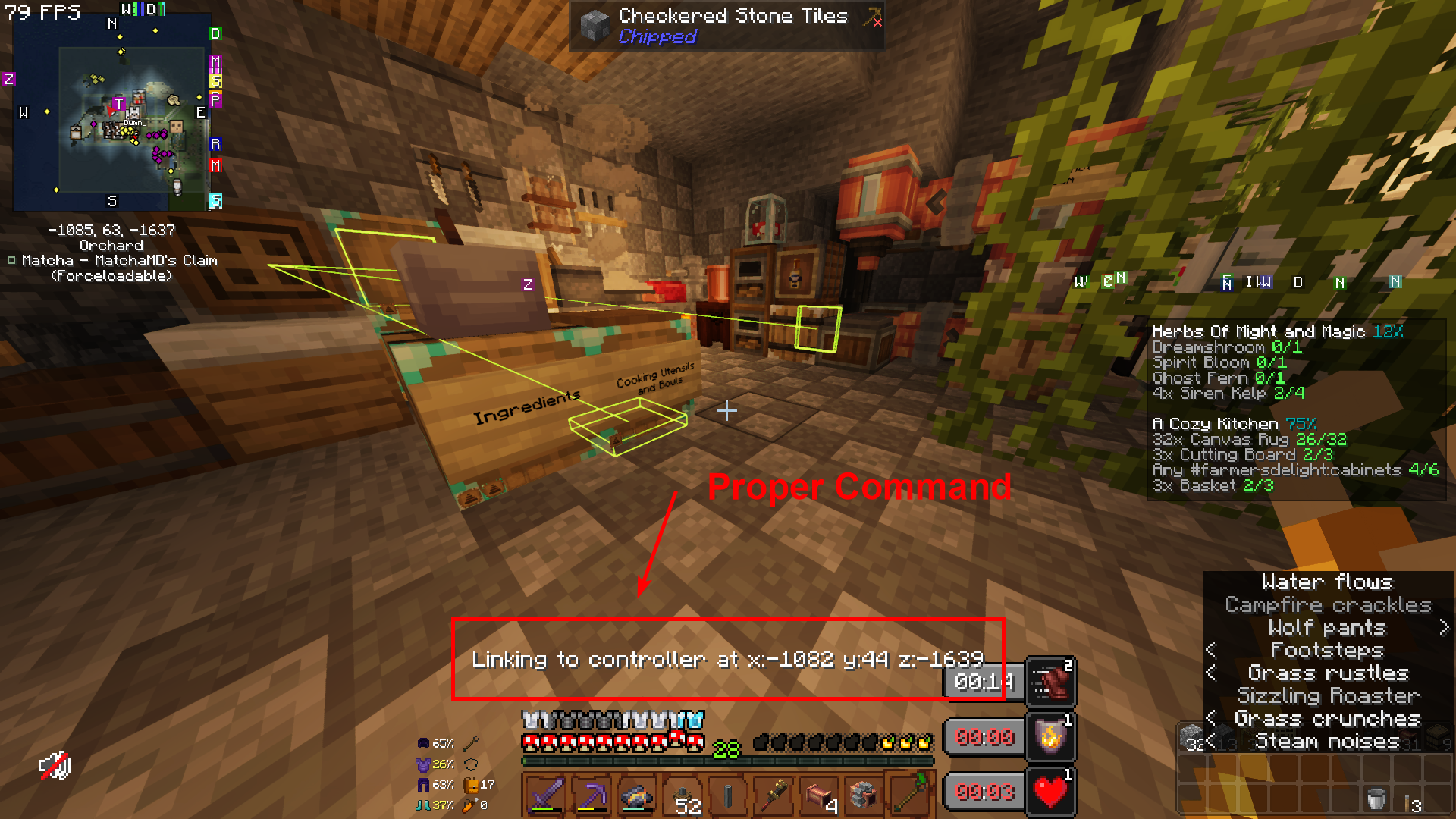
Now, you've got a connected inventory feeding to your Storage Controller. Double-right-clicking on this Storage Controller (the block, not the plate) will now deposit everything from your inventory bar and storage (not your backpack - we'll get into that later) into the appropriate stack that already exists.
If you have multiple inventories in multiple places, you'll do this for each one.
My workshop storage:
My "kitchen" storage:
Step 2: Linking those together
Because of the way mods work, we need to connect these systems with Tom's Simple Storage to make them wirelessly accessible.
- Craft an Inventory Cable Connector for each Storage Controller you have in Step 1. Stick them onto the Storage Controller.
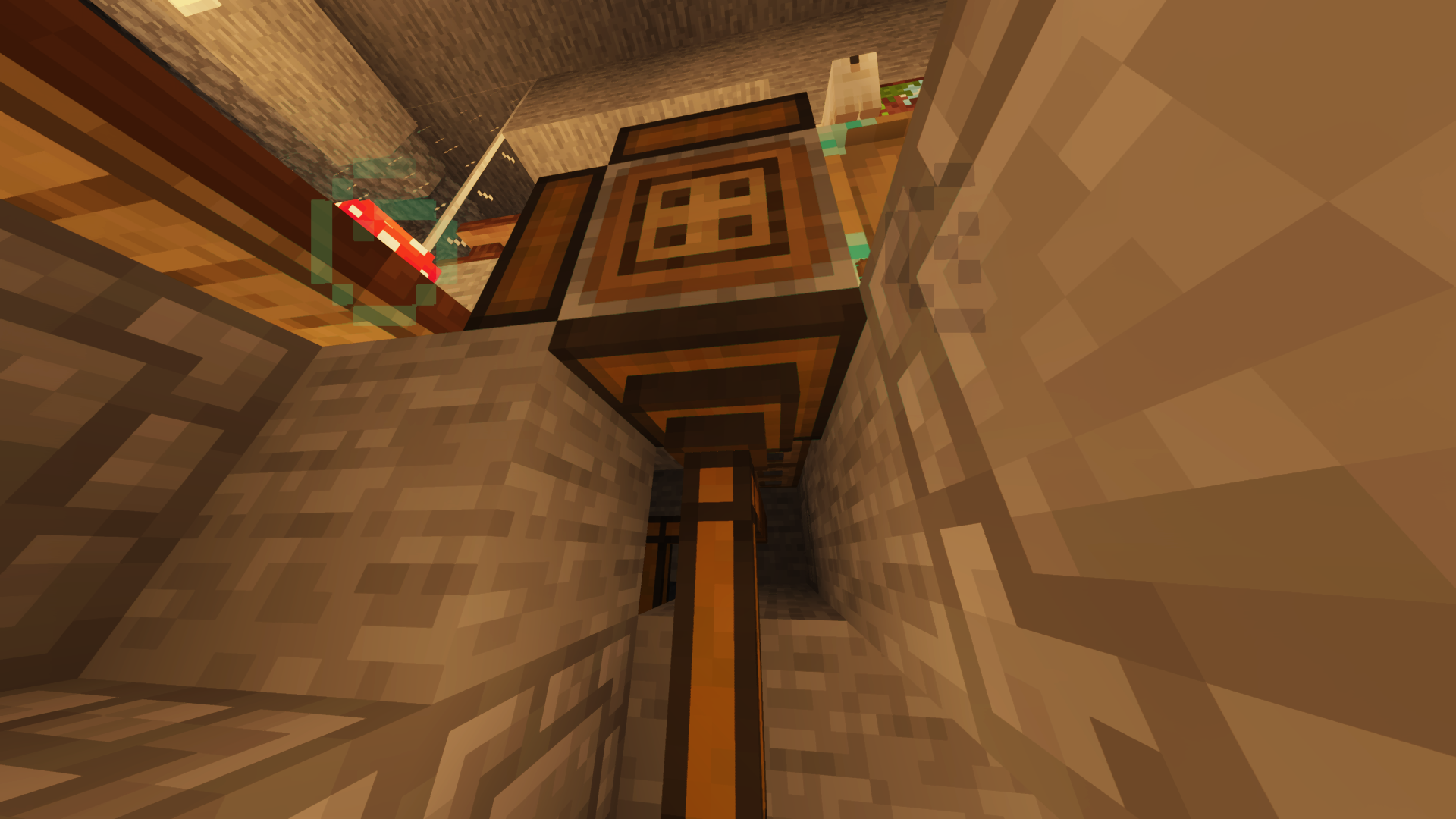
- Connect them together using Inventory Cables and/or Inventory Trims.
- Craft an Inventory Connector. This is very similar to a Storage Controller, but it's Tom's Simple Storage's equivalent.
- Connect your cable network into the Inventory Connector.
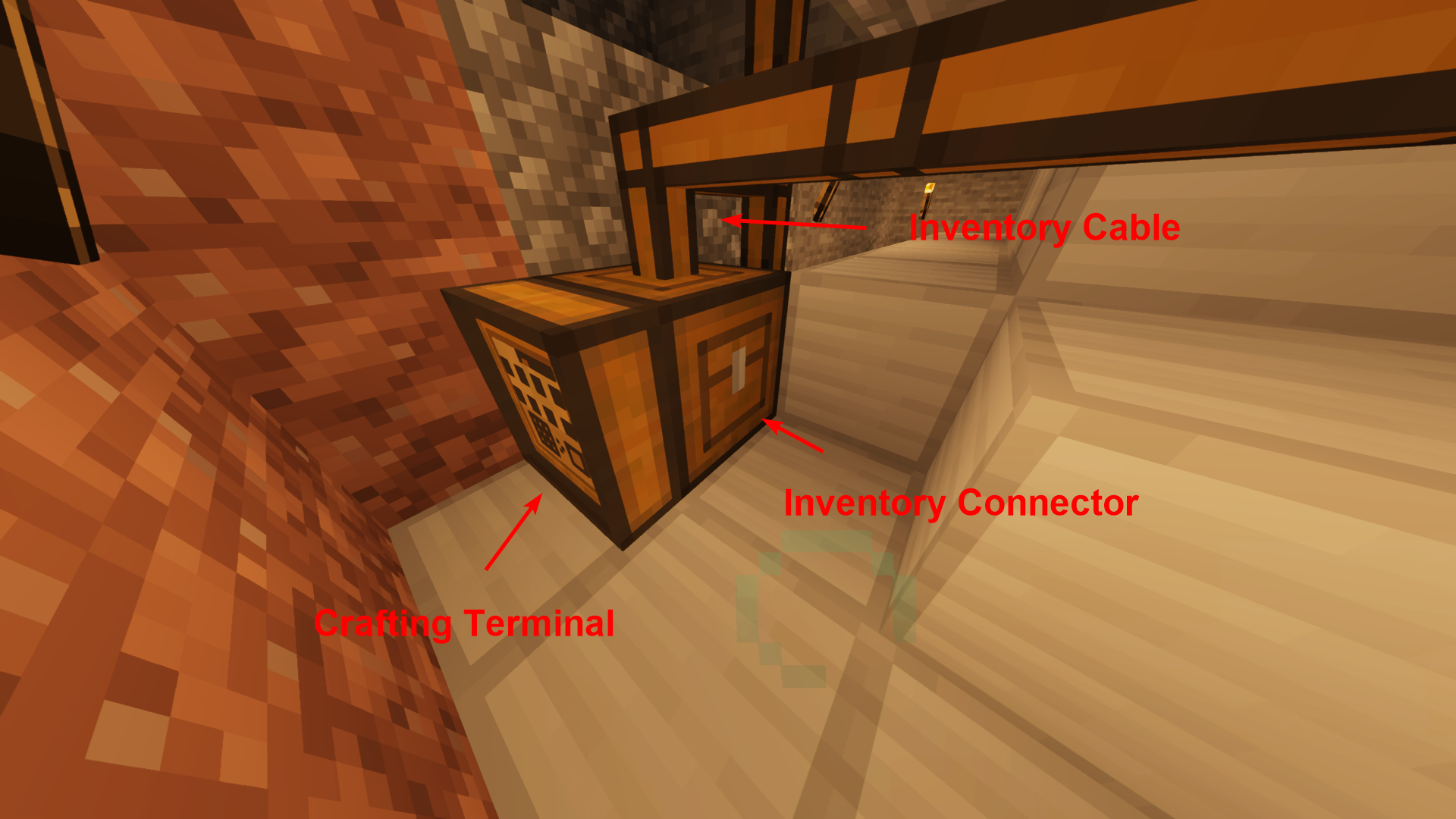
- Craft a either a Crafting Terminal or Inventory Terminal. Connect it to your Inventory Connector (see above)
- Right-click on the Crafting Terminal (preferable) or Inventory Terminal, you should now see items from each of your inventories. Do a search to confirm that (for instance, I searched for things I know are in my workshop storage, and my kitchen storage, and can confirm that both come up.).
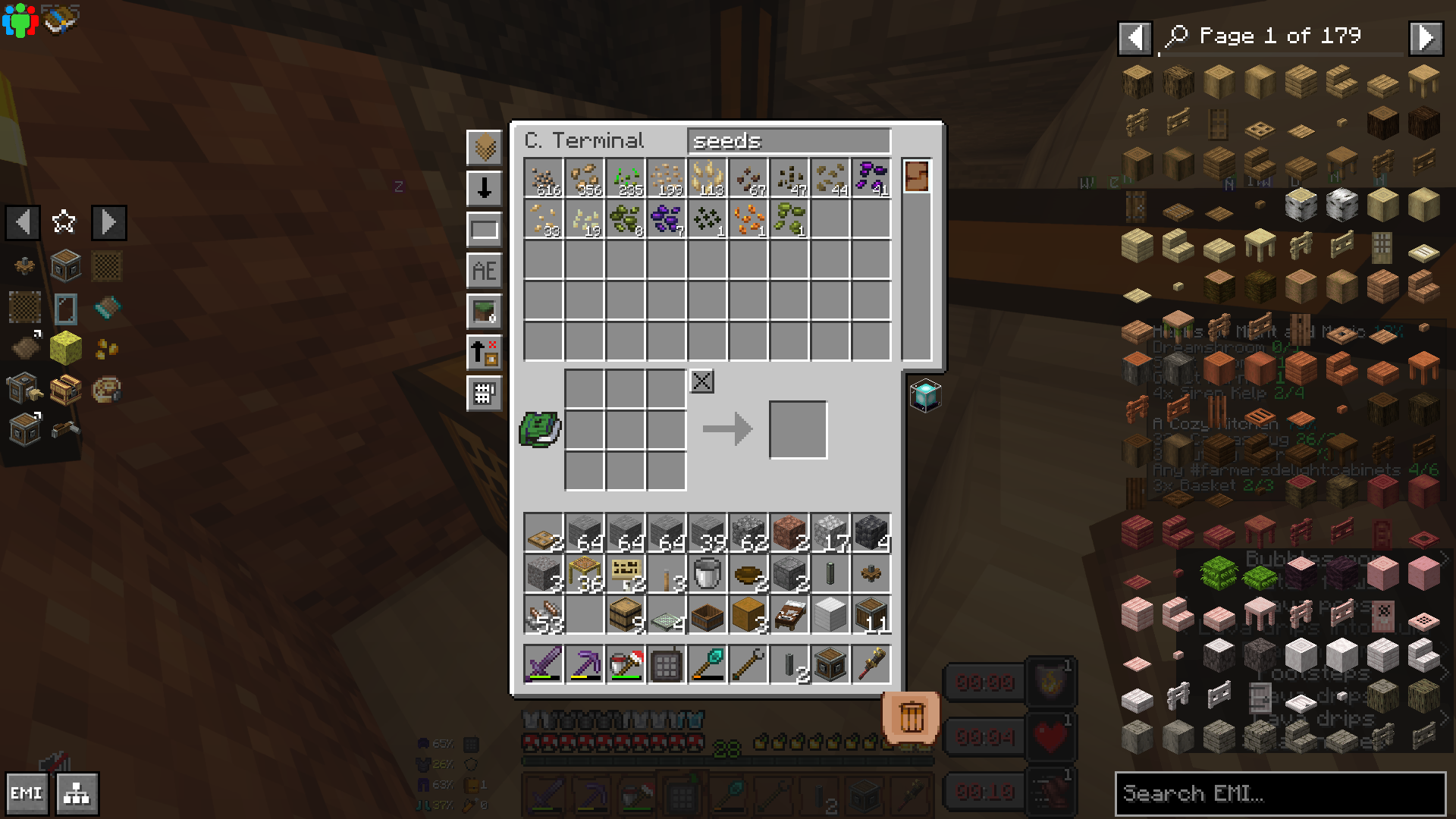
- Build an Advanced Wireless Terminal (AWT). Sneak-Right-Click your Crafting/Inventory Terminal while holding it to link the Advanced Wireless Terminal to it. Using your AWT will allow you to open your terminal remotely, up to 64 blocks away. You can keybind this as well.
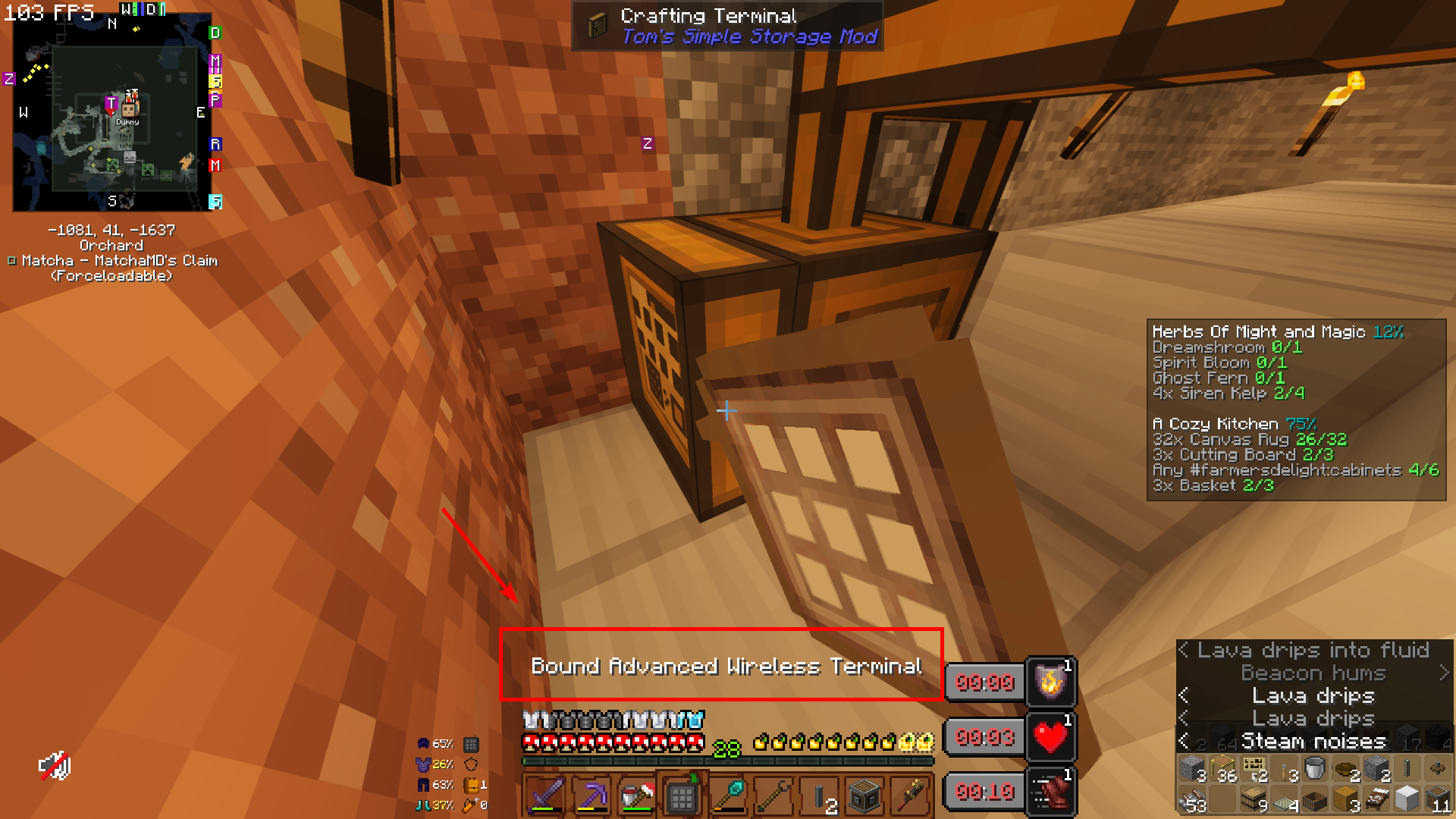
We can now access all of our inventories locally (through clicking on the Crafting/Inventory Terminal) and remotely (up to 64 blocks away) through our AWT.
Step 3: Making it Global
We now are going to use Beacons (from Vanilla Minecraft) to make this whole thing accessible from anywhere (no distance limit, no dimension limit).
- Build a beacon. Place it within 8 blocks of your Inventory Connector.
- Using an Inventory Cable and Inventory Cable Connector, connect your Inventory Connector to the beacon.
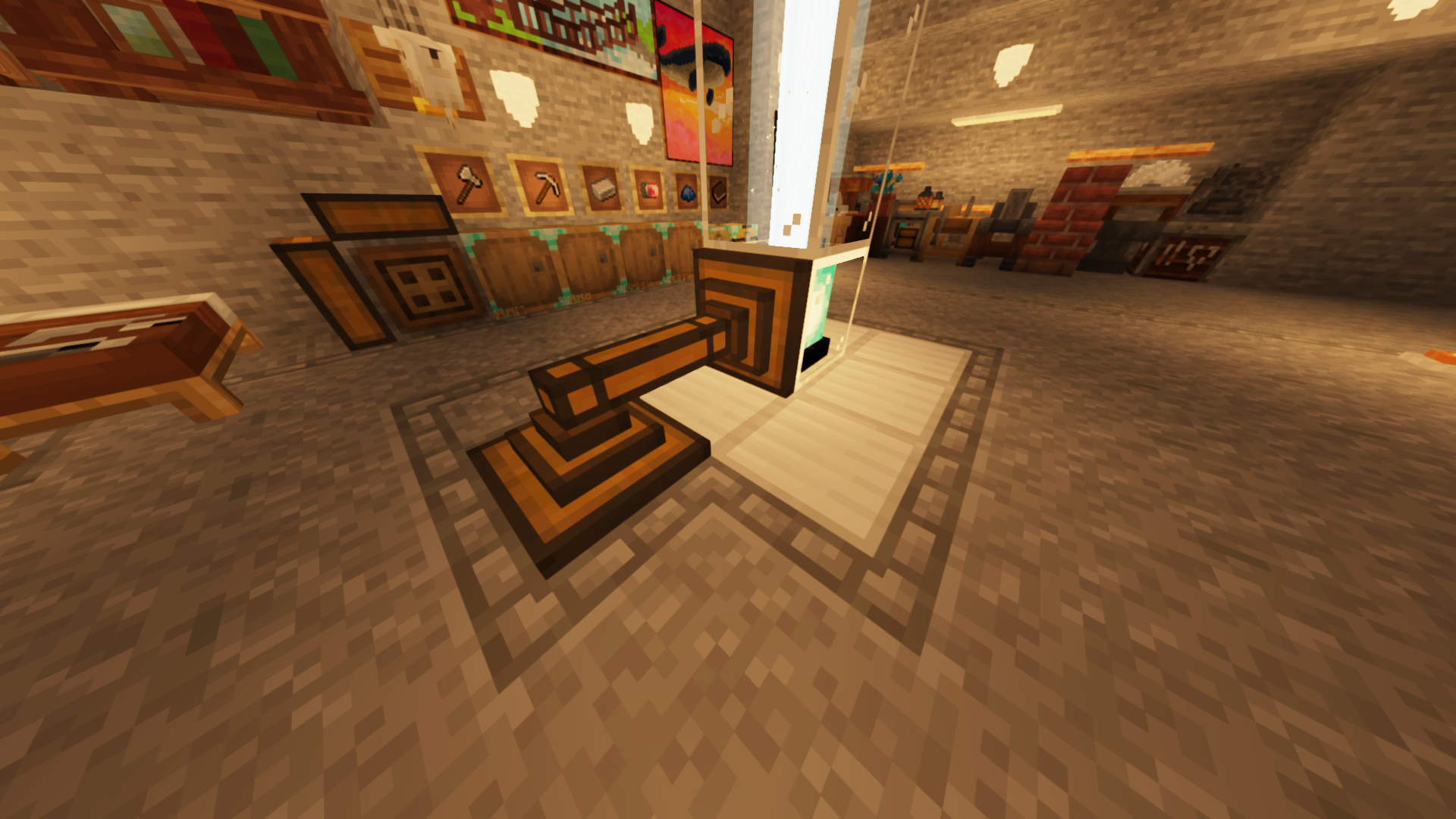
Note: There's an extra Inventory Cable Connector above because I'm using Inventory Trim and need to "plug it in" to the block. - Build a pyramid underneath the beacon. Adding nine blocks under the beacon will make the Beacon "Level 1" and allow you to access your inventory in the current dimension (Overworld or Nether). Making a full pyramid will make the Beacon "Level 4" and allow you to access it in any dimension.
- Right click on the connector that's connected to your beacon. Create a new profile (this is more for bigger servers). However, make sure that the setting in the top-right icon is set to Provide Inventories for Remote Access.
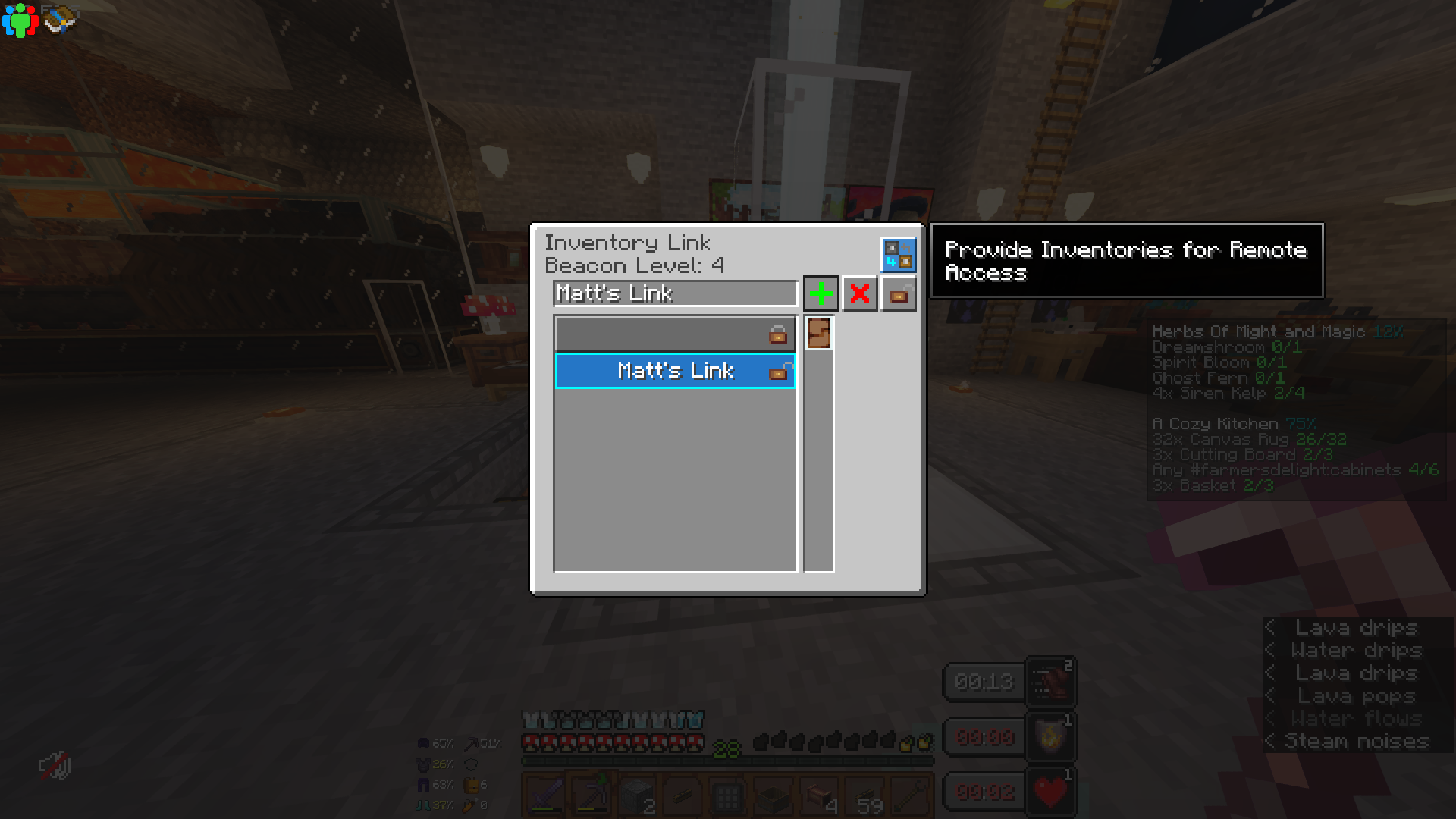
You should now be able to access your Terminal from beyond 64 blocks away from your inventories using your AWT.
When you open your Terminal, you should also see this icon that shows your beacon level.
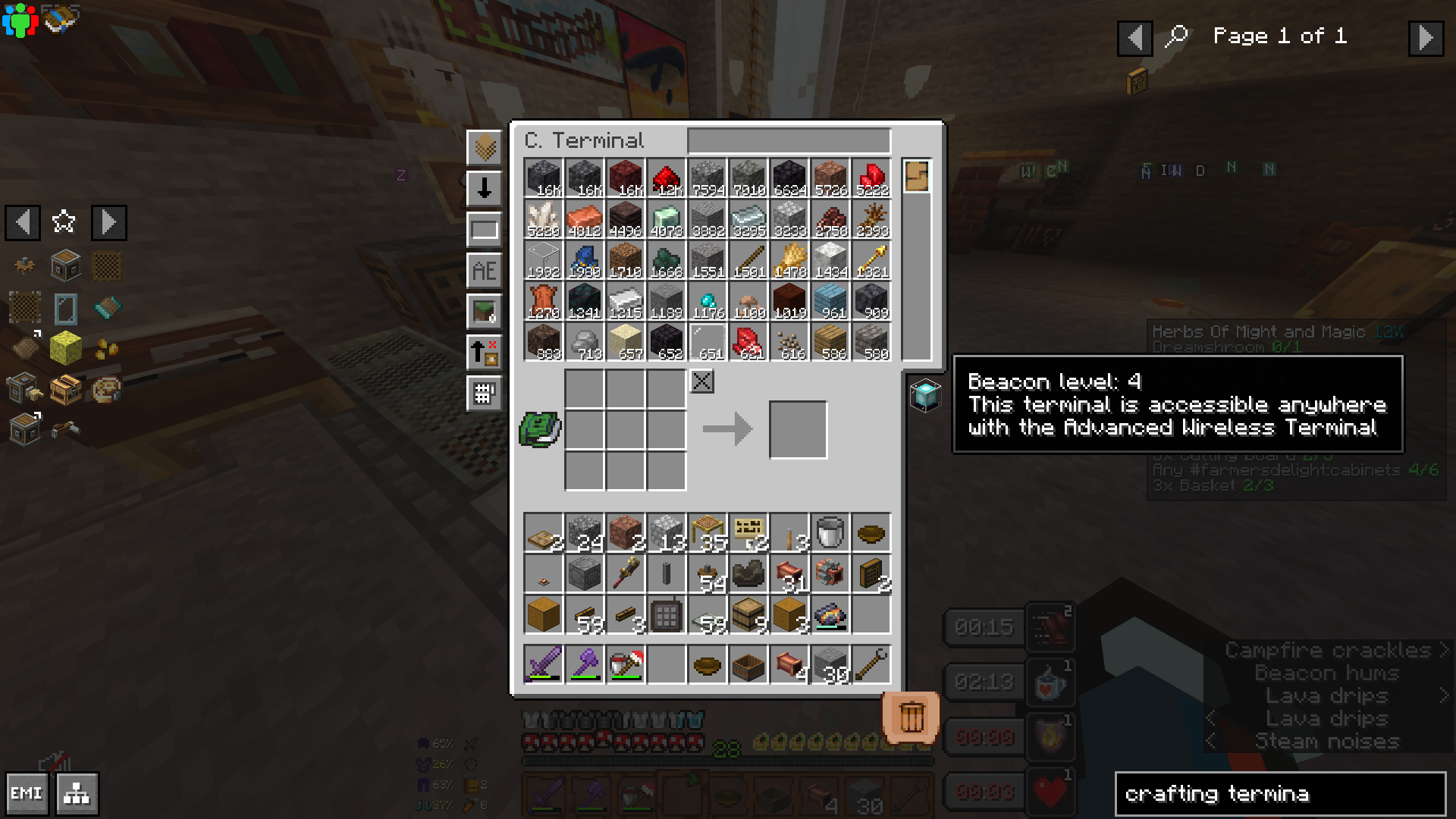
Step 4: Making it pretty
If you use Inventory Trim (the blocks, not the cables) to connect your inventory, you can make a Paint Kit to clone other blocks and apply it to your trim.
Sneak-Right-Click a block to clone it, and then Right-Click the Trim to make it look like the block.
Step 5: Filters and Backpacks
Bulk Depositing from Backpack
Sophisticated Backpacks have an upgrade for Backpacks called Advanced Deposit Upgrade. Having it installed allows you to hold your backpack in your hand and Sneak-Right-Click an Storage Controller to deposit everything in your backpack to appropriate stacks, but it needs to be configured properly.
- When you put the upgrade in your backpack's upgrade slot, you'll get a new tab in your backpack screen with settings.
- Make sure you change the button to Match Inventory Contents; otherwise, you'll need to manage what gets deposited manually, either by tags or list. This means that if a storage container (Barrel/Chest) has a stack of the item, the item you're depositing will be stacked appropriately.
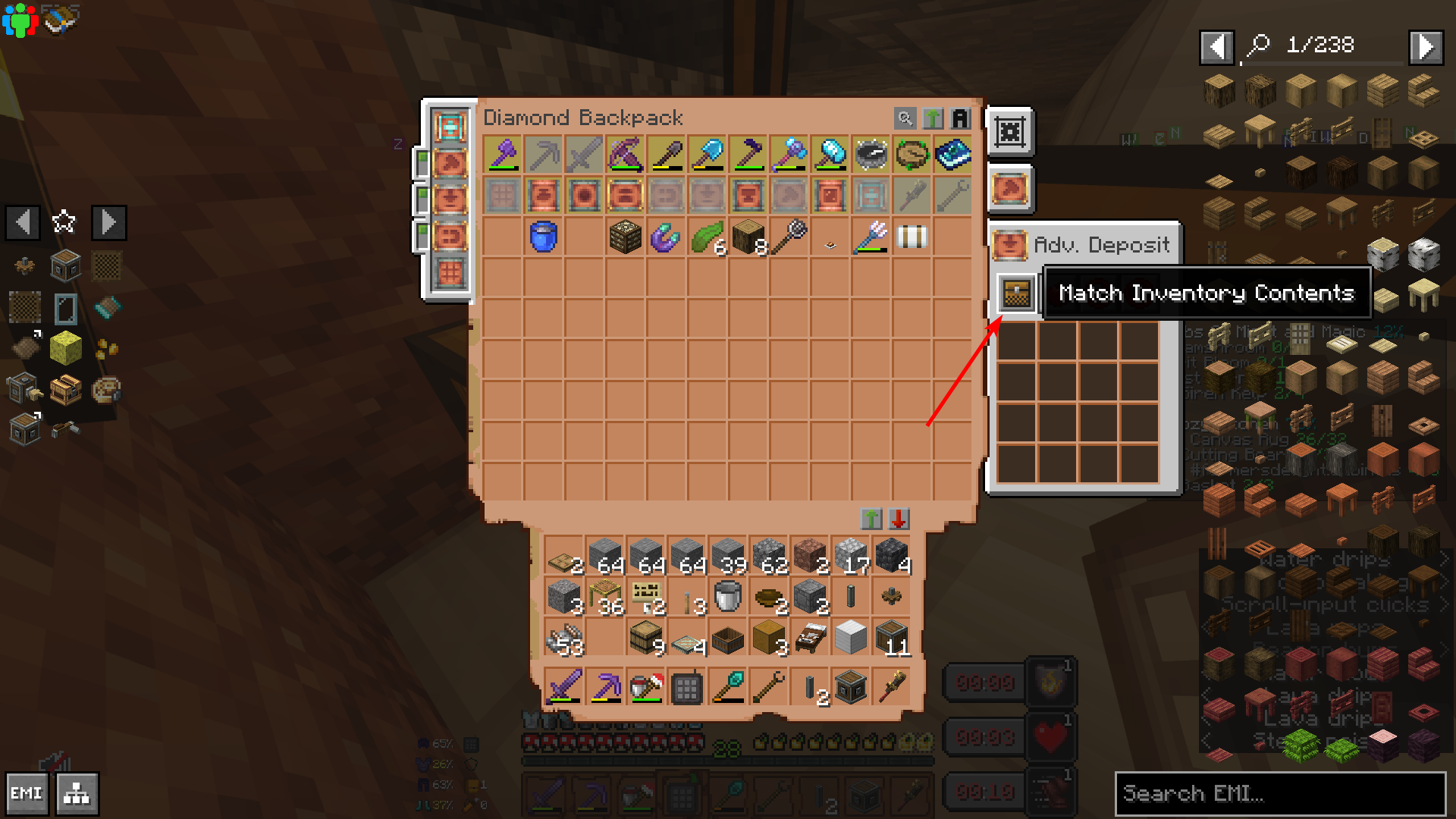
A note - you don't deposit like this with your Inventory Connector. You do it with your Storage Controller. This is because the mods are different.
Don't shift-right-click with your backpack on the blocks above.
^ Shift-right-click with your backpack in your hand to this one.
This also won't work across the whole network: for instance, I need to do this with both my kitchen and workshop separately.
Filtering From Inventory
If you're moving things to/from your inventory using the AWT (remotely), you'll notice that items will get deposited into random chests/barrels when you move them back wirelessly.
You'll need to craft Filter Upgrades or Advanced Filter Upgrades and slot them into appropriate chests.
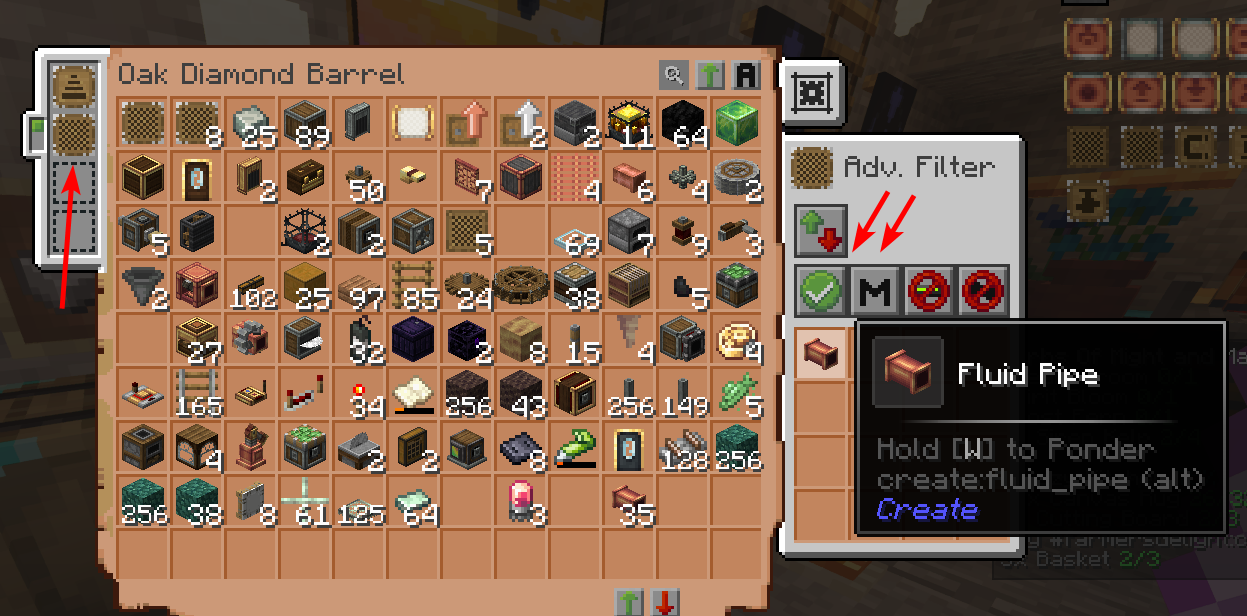
The filters allow/deny items based on an item list, "all items of this mod" or item tags (ie, "all items tagged with c:ores")
These filters will make sure that items go where you want them to when you deposit either from your backpack or wirelessly. However, Match Inventory Contents from the Backpack Mod is partially how to avoid this as well.